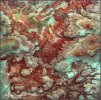
So I am experimenting with my new Mini 5 Pro automated panoramas. Normally, I simply do a 3-5 manual shoot and stitch in Photoshop Merge to Panorama. I tried the 11 shot and 21 frames shot but I go no automated stitching in the DCIM files. I cannot seen to figure out how to merge these multi image panos. Does anybody have a good Your Tube for me to watch or a quick tutorial. I prefer Adobe Photoshop or Adobe Lightroom rather than other commercial programs.
tell me more about the 11 and 21 shot panos. I have a Mini 5 Pro but I mostly use it as reconnaissance for my Mav4 Pro and don't do a lot of Pano's. Is the actually a setting that says 11 or 21? I need to fire it up and check this out....the manual doesn't even use the word panorama... I see there is no "11 or 21" setting per se and wonder how/why you would ever end up with that number of frames. Using the "free" pano setting? Otherwise I would expect, as I always do, that if you are shooting a pano manually, shooting a frame, moving ⅔ to the right or left, shooting another and continuing, and if desired, moving up or down ⅔ of a frame repeating below and maybe even above. You always end up with some form of a rectangular form and Lightroom will always be able to merge to a panorama. When shooting AEB it requires 5AEB for some reason. I don't understand the 11 or 21 issue....
Thanks for responding. I just shot this for you.
Here are my steps
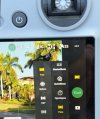
1. from menu- still images
2. select Pano
3. select 180- hit start. Drone shoots 21 images (JPG)
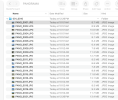
4. DCIM shows 21 JPG images. Not auto assembled from the drone. I have 21 images to create the pano. How dod I do this?
I called Adobe-too they said, in Photoshop "File>Photomerge>Auto
My Mavic 4 Pro does the pano merging itself; it also gives you the individual files along with the merge. I’ve tried manually merging the originals in Lightroom, but the Mavic seems to do it better, or I don’t know what I’m doing (quite possible).
In your root folder, not the Panorama folder, see if there isn't a pano there. It would be a higher MB count and of course the thumbnail would reflect it. I'd guess you have done that buy I think all my drones will create such panos - but I'm not entirely sure.
In your root folder, not the Panorama folder, see if there isn't a pano there. It would be a higher MB count and of course the thumbnail would reflect it. I'd guess you have done that buy I think all my drones will create such panos - but I'm not entirely sure.
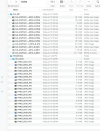
Yes AK D- I looked for it. Here is the root DCIM) folder opened for you. I cannot find a drone generated pano there.
I worked with Adobe Photoshop expert for 30 minute today but he could not stitch it either.
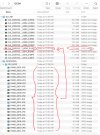
Dale, it's right there, exactly where it should be!
It's the 27.5 MB JPG circled below.
It also matches the time of the individual 21 JPG's and the file name matches the PANORAMA folder subfolder name of 001-0010.
You should also be able to stitch it yourself from the individual 21 images for a Hi Res image of a much larger size than 27.5 MB.
I often make panoramas from even more photos (sometimes from several rows) shot individually from the tripod with DSLR or from the drone (Mavic 3 Classic) and always merge them in Camera Raw (Merge to Panorama), and then edit further in Photoshop. In Camera Row you can chose several different algorithms, and many additional options. I don’t use other programs and effects are always as expected
I think I heard the tap... I was pretty sure...and...you may be able to increase the size of the thumbnail icons which will allow you to visually notice the difference in aspect ratio, and of course the size of the file is the other clue. But you knew that, hence the tap on the head LOL.
I regularly make panoramas with my Air3s, although the drone does a great job, using PanoVolo does a better job! I have Photoshop and lightroom, but stitching in PanoVolo is just so much easier, it was really worth the small purchase price!
Dale, I've been doing drone panos for many years. It's mostly what I do with my drone photography. Since I already was doing it fairly well with my ground based cameras, I simply wanted to stay with the same workflow. I did try the drone's own 'pano' feature, but I had no control with what it was going to do and it never met my desires. I need to carefully determine my range of images captured (width and height) and maintain the overlap I feel is best for each scene. I often just do 2 or 4 frames either vertically of horizontally. Sometimes I do a matrix. I've done five across and four rows totaling 20 frames. I merge them in ACR and finish in Photoshop just like with my bigger digital cameras..
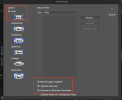
Regarding panos, there are a variety of tools and workflows available. If you're like Dale and working in Photoshop, my suggestion is that you choose the "auto" align feature in Photomerge and then below choose "Blend Images Together," "Vignette Removal," and, most importantly, "Geometric Distortion Correction." This last choice will help to reduce much (but not all) of the distortion. (My workflow is selecting the several images that I want to use for a pano in Lightroom and then passing that batch to Photoshop with its Create Panorama (?) option.)
After my pano is generated, then I'll flatten the image. My panos are frequently hundreds of megabytes in size.
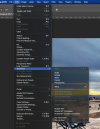
As a further Photoshop suggestion, my panos are frequently slightly distorted or the horizon is improperly aligned or both. With my flattened image, I'll "select all" (control-A on a Mac) and then Edit>Transform>Warp (I've created a shortcut for this selection, which is why you see F2 below). From there I'll push and pull the image until it feels right to me. And, if I don't like how I've pushed and pulled the image, then I'll just hit Escape and start over a little wiser.